How does Boxdup work?
Everything you need to know — from your first memory to exporting your data. For everyone who wants to get the most out of Boxdup.
Contents
Step 1
Using the Share Extension
The Share Extension is the heart of Boxdup. It lets you save content from almost any app directly into your box — without opening Boxdup. Set it up once, then it works with a single tap.
Important: Boxdup must be opened at least once before it appears in the share menu. If you've just installed Boxdup, open it briefly and close it again.
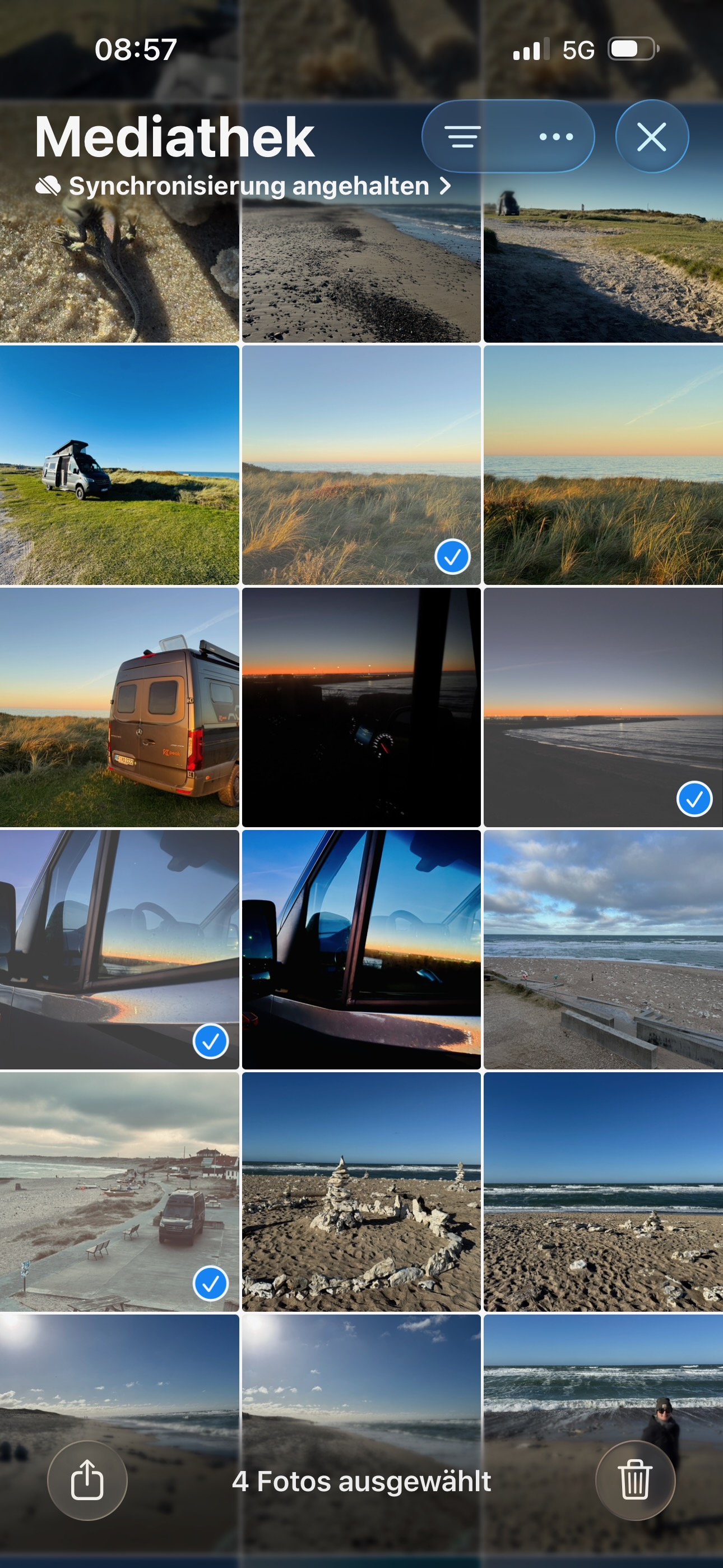
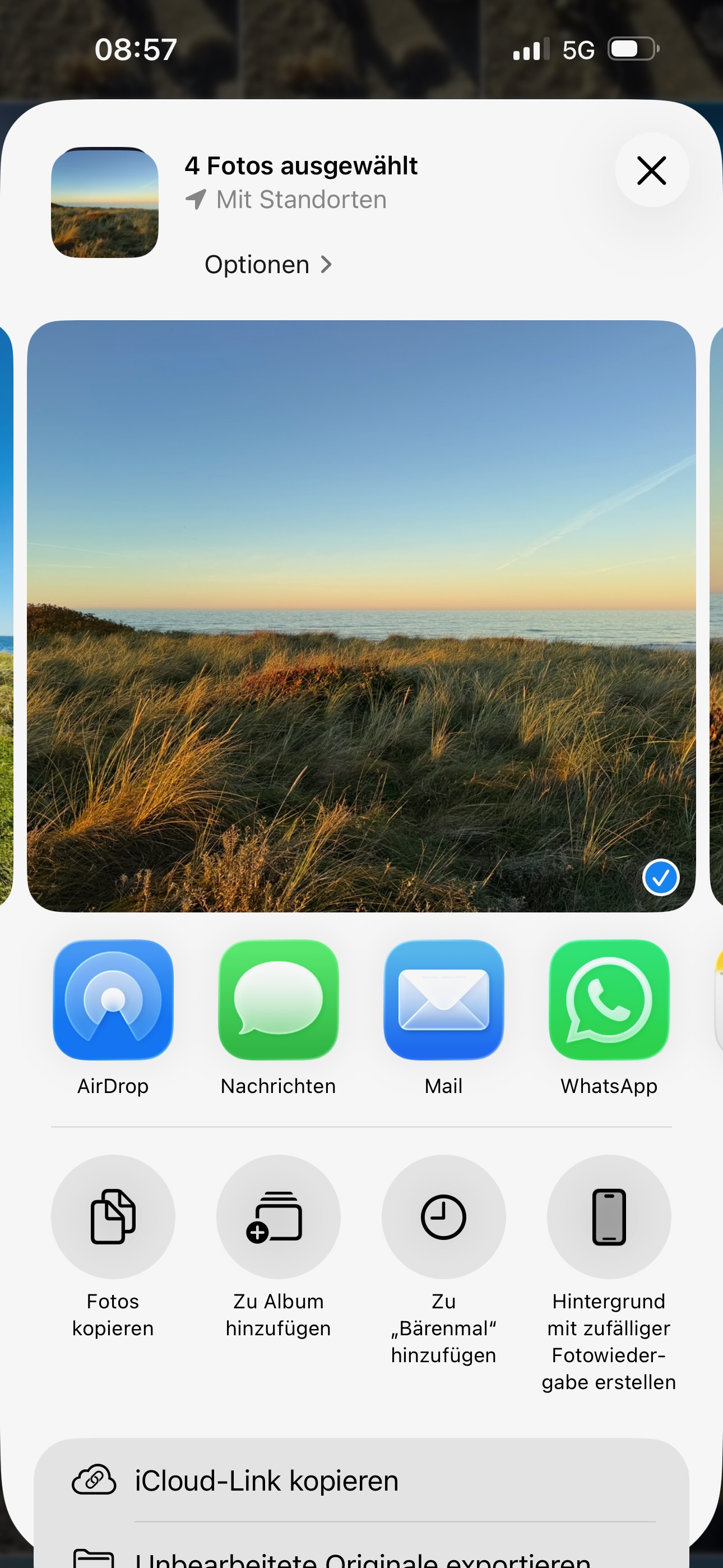
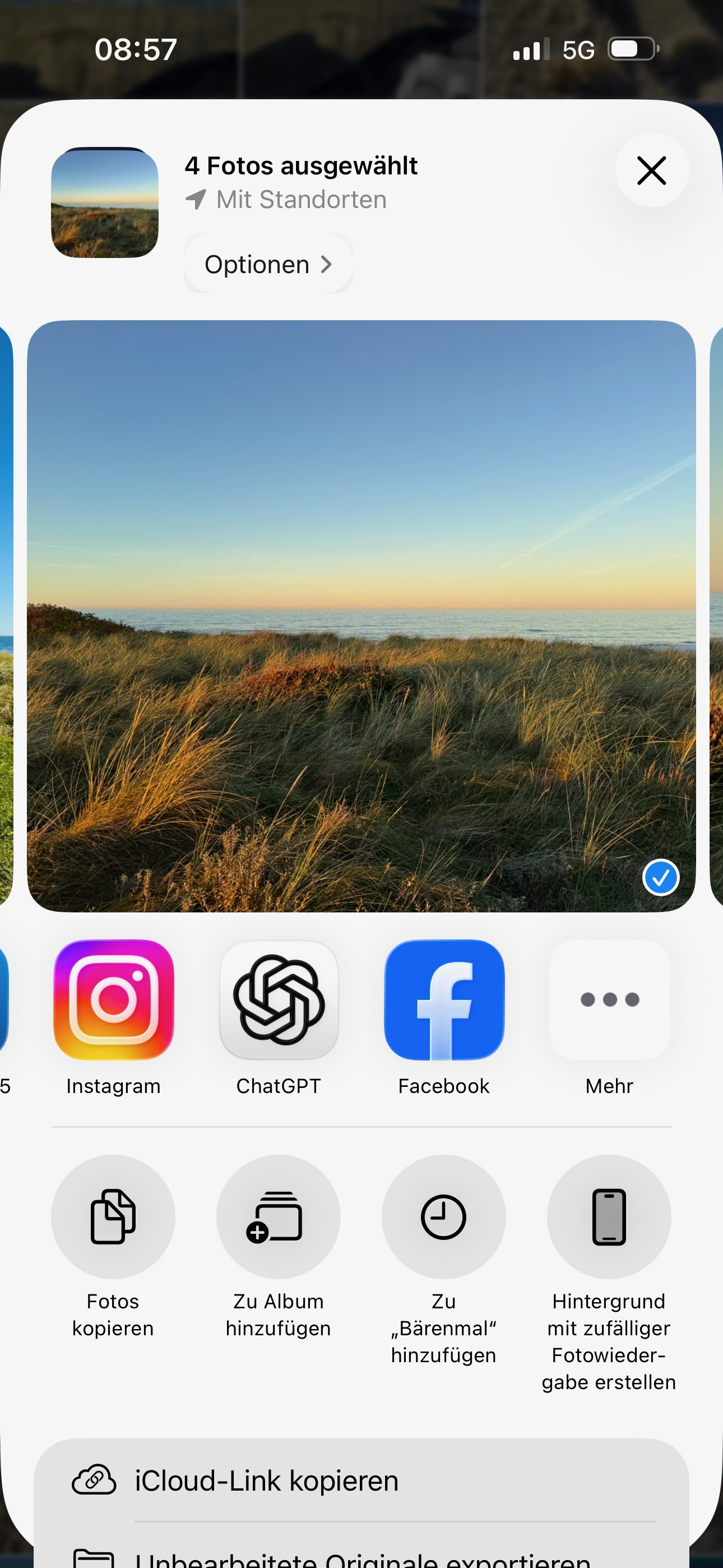
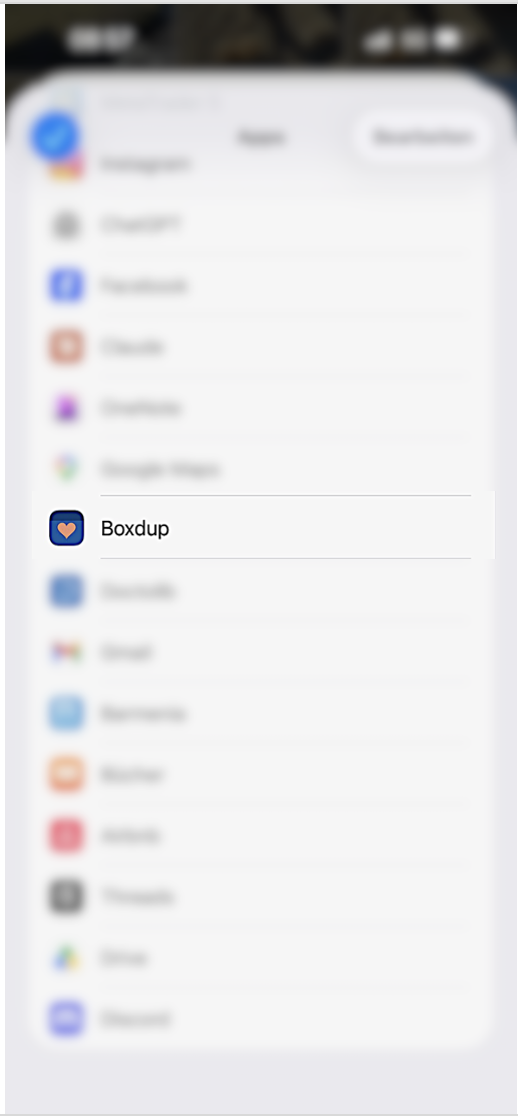
Good to know: Over time, Boxdup will move further forward in the share sheet, making sharing even more convenient.
Step 2
Sharing a new memory
You can share content from many different apps. Here are two concrete examples — one using the Photos app, one using WhatsApp.
Example 1 — Photo or video from the Photos app
Multiple files at once: In the Photos app you can select multiple files and share them all at once. Each one is saved as a separate memory.
Example 2 — Text or voice message from WhatsApp
Sharing also works with links from Safari, documents, audio files, screenshots and much more. Boxdup is your archive for everything that matters to you.
Step 3
Enriching a memory
Every new memory starts as a raw capture — it has the content, but no context yet. You can find these memories via the #raw tag. Enriching means giving the moment more meaning. It's entirely optional, but makes finding things much easier later on.
Enrich multiple memories at once: In the Memories tab you can select multiple memories at once (multi-select button at the top right) and assign an event, buddy, or tags to all of them together.
Step 4
Creating an event
Events are your life chapters — a holiday, a birthday, a wedding, a concert. You can assign all memories from an occasion to an event and experience them as a whole.
Step 5
Adding a buddy
Buddies are the beings in your memories that matter to you. That could be your dog, your best friend, or whoever your buddy is. When you assign a buddy to a memory, you can later find all moments with that buddy at a glance.
Find all memories with a buddy: In the Discover tab, your buddies appear as quick-select options. Tap a name — and you'll see all memories with that buddy at a glance.
Frequently asked questions
Everything else you'd like to know
Here you'll find answers to the most common questions about Boxdup.
This is the most common stumbling block — and easy to fix.
Step 1: Make sure Boxdup has been opened at least once. iOS only registers the Share Extension after the first launch.
Step 2: Open the share sheet in your Photos app. Scroll all the way to the right in the app row and tap the three dots ("More").
Step 3: Boxdup appears in the list of available apps — you may need to scroll through the list. Then simply tap Boxdup.
Exclusively on your iPhone — locally, within the app. There is no cloud connection, no servers, and no upload anywhere.
Your memories never leave your device. But they are of course part of your normal backup.
If you delete Boxdup, all locally stored data will be permanently deleted. That's the price of true privacy — no cloud also means no automatic backup.
What you can do:
- Export your data beforehand via Settings → "Export Data"
- Make sure your iPhone is backed up to iCloud or iTunes — Boxdup data will be included
Under Settings → "Export Data" you can export all your memories as a ZIP file.
What's included in the export:
- memories.json — all metadata: title, date, tags, buddies, events, notes
- media/ — all media files: photos, videos, audio, documents
- README.txt — explanation of the format
The JSON format is open and machine-readable — your data remains usable even without Boxdup. You can import the file into any other app that understands JSON, or use the media files directly.
The export is provided as a ZIP file via the iOS share menu — you can send it via AirDrop, Mail, iCloud Drive, or any other app.
Any app that supports the standard iOS share button. There may be some exceptions. We can't test every app in the world (yet). :)
If an app doesn't have a share button or doesn't work, you can alternatively take a screenshot and share that directly.
Yes. In the Photos app you can select multiple images at once and share them all at once. Each image is saved as a separate memory — with the same date and timestamp.
The same applies to other apps that support multiple selection.
Since Boxdup is stored locally on your iPhone, your iPhone backup is simultaneously your Boxdup backup. There are two options:
- iCloud Backup: Automatic when enabled (Settings → [your name] → iCloud → iCloud Backup). Boxdup data is included.
- iTunes/Finder Backup: Connect your iPhone to your Mac, open Finder, and create a local backup.
We also recommend regular exports via Settings → "Export Data" as an additional safety layer.
No. Boxdup has no access to your content. There are no servers, no analysis, no tracking of your content.
The app processes everything locally on your device. No employee, no algorithm, and no third party can see your memories.
No. Your memories never leave your device. There is no connection to Apple services (other than the normal iPhone cloud backup if you have it enabled), to Google, or to Meta.
Boxdup uses Firebase Crashlytics for anonymous crash reports — without personal data or content.
A memory is automatically marked as #raw when it hasn't been enriched yet — meaning it has no title, no tags, and no buddy.
You can filter by "#raw" in the Memories tab to quickly find all memories that still need enriching.
Once you've given a memory a title, a tag, or a buddy, the #raw label disappears automatically.
A memory automatically gets the #new label when it's been freshly saved via the Share Extension and you haven't yet opened it in Boxdup.
A banner appears at the top of the Memories tab when new memories are waiting for you. You can filter by "#new" to see all freshly received content at once and enrich it.
Once you open or edit a memory, the #new label disappears automatically.
With #later you can mark memories that you deliberately don't want to enrich yet — for example because you don't have time right now, or because you want to decide later whether to keep them.
You can filter by "#later" in the Memories tab to see all deferred memories at a glance and work through them at your leisure.
The label is set and removed manually — Boxdup doesn't change it automatically.
Events are time-bound chapters — a holiday, a wedding, a concert. They have a date (and optionally an end date) and group all memories from that occasion. Events are suited to one-off moments.
Tags are thematic labels you can reuse again and again — "Family", "Food", "Sport". A tag can be assigned to any number of memories and helps you find memories across all events.
You can combine both: a memory can be assigned to an event and multiple tags.
The free version of Boxdup allows up to 50 memories to be saved. After that, an upgrade to Boxdup PRO is offered.
Boxdup PRO includes:
- Unlimited memories
- Access to PRO features when they become available
PRO is available as a monthly subscription, processed via the App Store.
Not yet. Boxdup stores everything locally on your iPhone. Synchronisation across multiple devices is planned for a later version (Cloud Sync on European servers).
You can however export your data at any time and restore it on a new device — provided you have an iPhone backup.